2. Smart Content Recognition
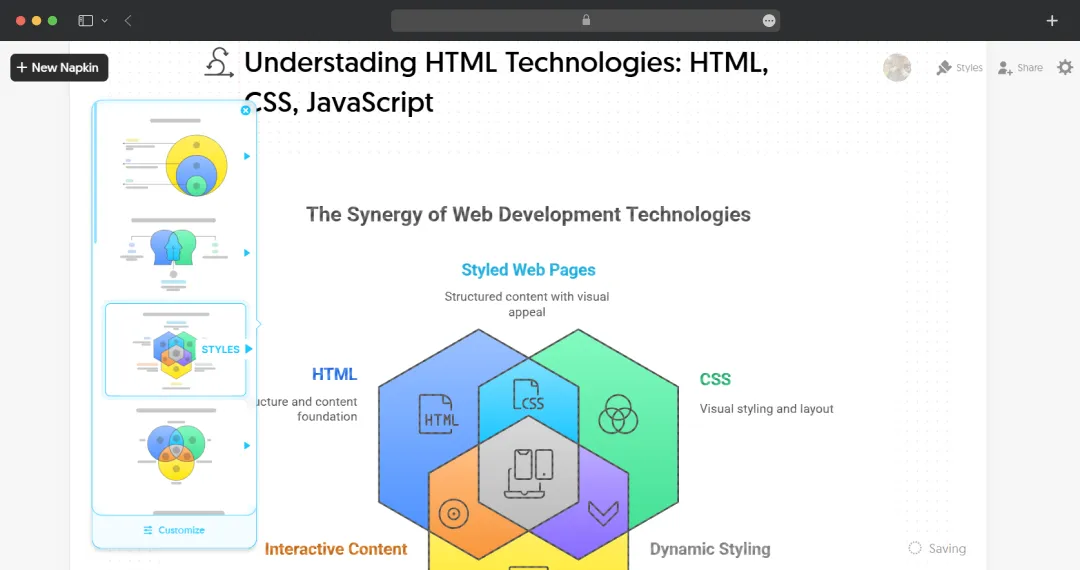
Using advanced natural language processing, Napkin AI understands your text and automatically selects the best visual structure—no manual formatting required. During my testing, I threw different types of content at it:
Transform text into professional visuals instantly with Napkin AI—our hands-on review reveals features, pricing, pros, cons, and real-world performance insights.
Most of us aren't graphic designers. We're marketers, educators, consultants, content creators, or students who just need to communicate ideas visually without spending hours learning Figma or wrestling with PowerPoint's limited design capabilities. We've got concepts in our heads (or notes documents) that desperately need visual representation, but the gap between "I know what I want to say" and "I've created something that looks professional" feels impossibly wide.
That's exactly the gap Napkin AI aims to bridge, and after putting it through its paces. We’ve been testing everything from basic text conversion to multilingual content, collaboration features, and export quality. And now, I want to share what I actually discovered. Not the polished pitch, but the real functionality, the limitations, and whether this tool genuinely delivers on its promise.
So let me walk you through what I found during my deep dive into Napkin AI, breaking down the features that actually matter and showing you exactly how this AI-powered design tool works in practice.
Pros
Cons
Here's where things get technically interesting. Napkin uses an orchestrator large language model driven mainly by OpenAI's GPT-4o mini to respond to user prompts, which acts as an agent delegating jobs to a series of other sub-agents that have specific responsibilities.
Unlike diffusion AI models used by most other image providers, Napkin doesn't rely on those because they don't allow users to easily edit unique elements of illustrations, like individual slices of a pie chart. This is HUGE. I tested this by creating a pie chart and then wanting to change just one segment—it actually worked smoothly, which would be impossible with traditional AI image generators.
Using advanced natural language processing, Napkin AI understands your text and automatically selects the best visual structure—no manual formatting required. During my testing, I threw different types of content at it:
The AI analyzes text to identify relationships and concepts, generating flowcharts, mind maps, and diagrams instantly. What impressed me most was when I pasted a blog paragraph about project phases, it immediately recognized the sequential nature and offered timeline and process flow options.
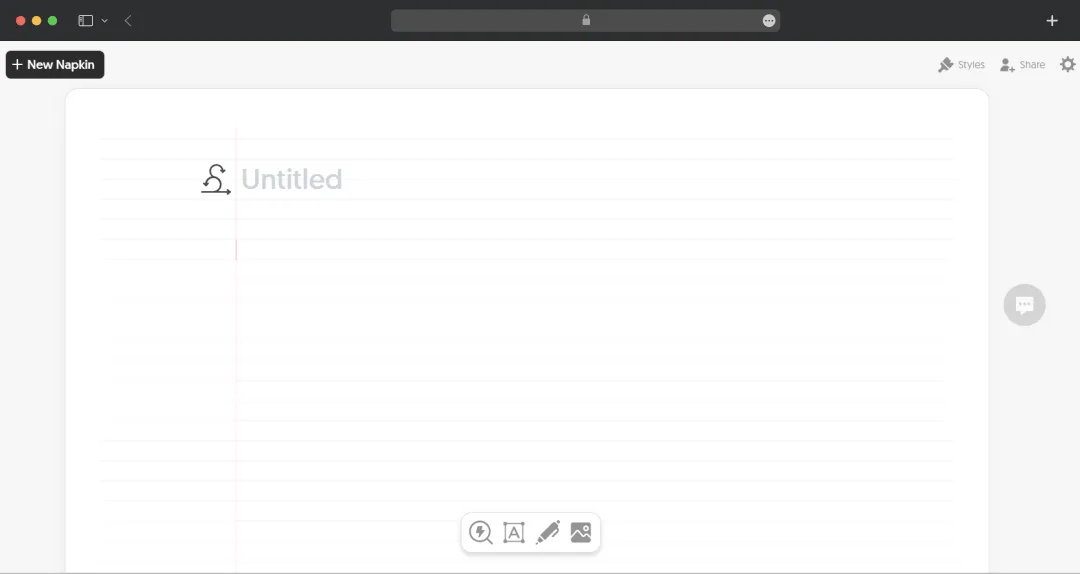
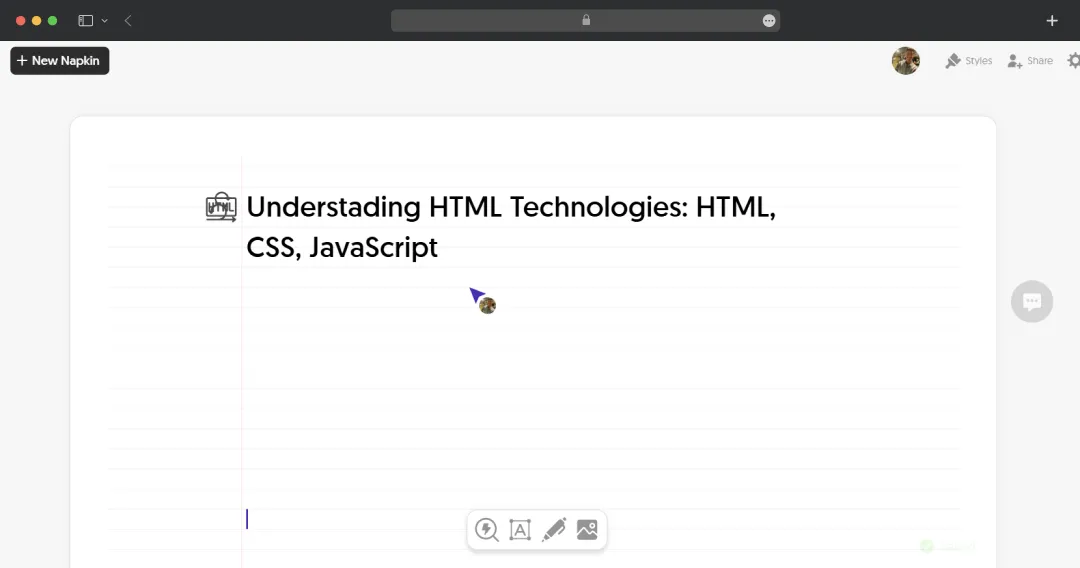
Napkin's workspace feels like a blend of a note-taking canvas and a design tool where you freely move and edit visuals on the page, and toggle presentation aspect ratios between 16:9 slides versus long documents. This is fundamentally different from traditional design tools. You're not confined to rigid templates or overwhelming toolbars.

Instead of starting with "what do I want this to look like?", you start with "what am I trying to say?" The design follows naturally from your content, which honestly feels revolutionary when you're used to tools like PowerPoint or Canva.
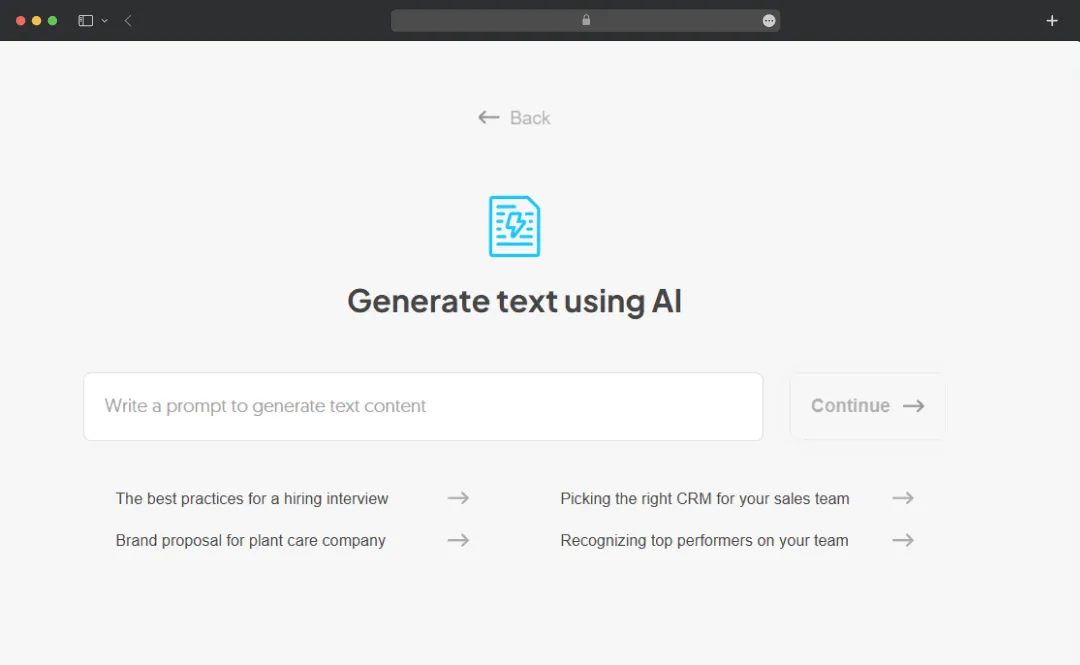
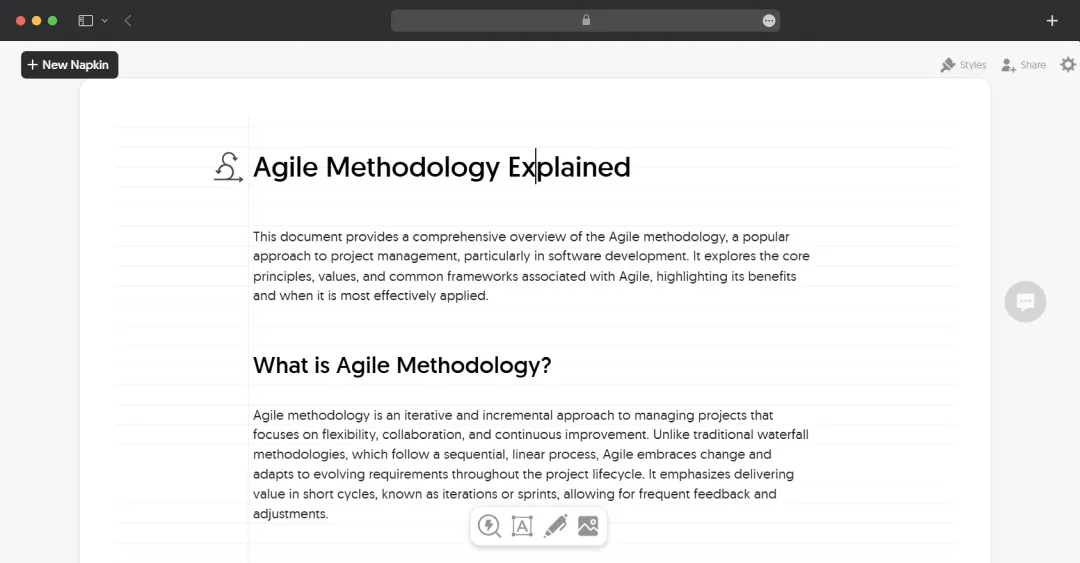
Here's something I didn't expect: you can generate content for a topic using AI and then create visuals based on that content. So if you're starting from scratch, you can ask Napkin's AI to help you outline a concept, and then immediately visualize it. I tested this with "explain agile methodology" and, within moments, had a full text breakdown that I could then convert into multiple diagram formats.

The AI analyzes your input, breaks it down into components, and offers suggestions to enhance it. It's like having a brainstorming partner who also happens to be a designer.
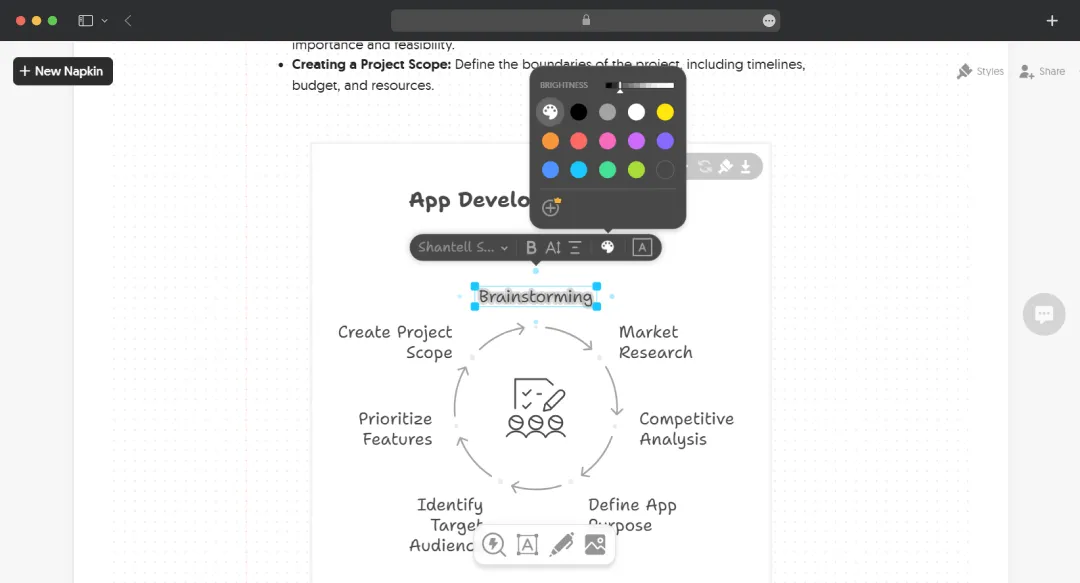
Every visual Napkin created is fully editable. You can click on any element (icons, shapes, or connectors) to swap them out or restyle them. Napkin provides a rich library of icons and decorators (smart shapes), plus flexible color palettes and font choices.

What makes this powerful is that visuals scale automatically with content changes. I added three more steps to a process flow, and the entire diagram reorganized itself intelligently without breaking the design. That kind of dynamic adaptation saves so much time.
You can also specify exact visual types, including flowcharts, mind maps, tables, and timelines, control orientation (portrait, landscape, square), and set detail levels from summary to detailed views. So while it's automated, you're definitely not sacrificing control.
The Team space feature lets you invite your whole crew into one shared workspace where everyone can jump in and work on the same file together, with color-coded comments so there's no confusion about who said what. You can instantly share visuals via link with teammates to streamline discussions and decision-making.

During my team test, we had three people simultaneously editing different sections of a strategy document. The real-time updates were seamless—no version control nightmares or "can you send me the latest file?" messages.
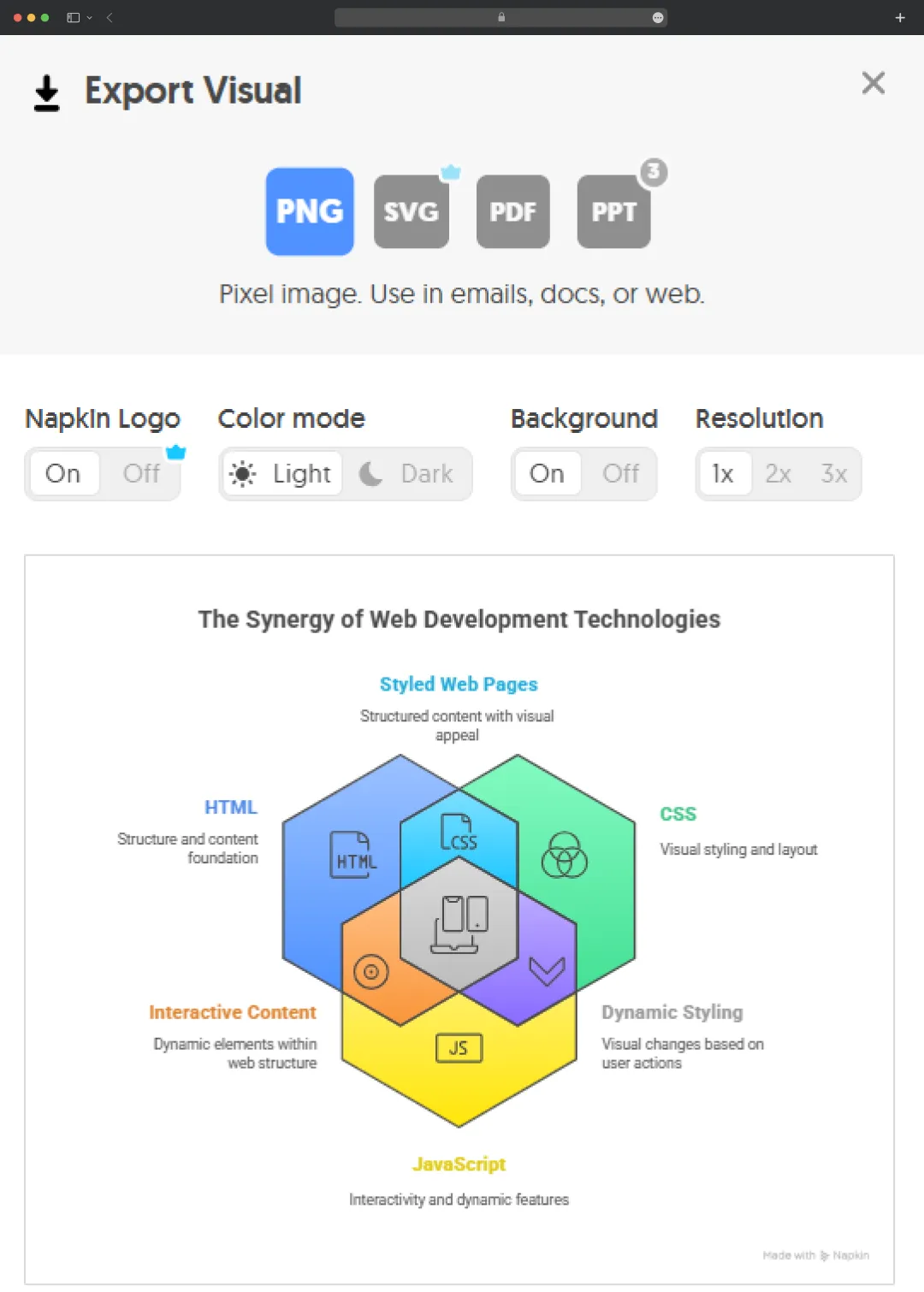
You can easily export visuals in formats like PNG, PDF, or SVG, making them perfect for presentations, documents, or social media. But here's where it gets really practical: the ability to drop these directly into your existing tools without friction.

The quality held up beautifully whether I was exporting for a high-res PDF report or a quick social media post. The SVG export is particularly clutch if you need to scale graphics without losing quality.
While the interface is in English, the AI is capable of creating images from text in over 60 different languages, including Spanish, Japanese, French, and dozens of others. I tested this with German and Hindi content, and the visuals maintained proper text rendering and layout—no weird character issues or broken formatting.
| Feature | Free Plan | Plus Plan | Pro Plan |
|---|---|---|---|
| Monthly Price | $0 | $12/month | $30/month |
| Yearly Price | $0 | $9/month (Save 25%) | $22/month (Save 25%) |
| AI Credits | 500 per week | 10,000 per month | 30,000 per month |
| Visual Editing | Unlimited | Unlimited | Unlimited |
| File Import | Unlimited (PPT, DOC, PDF, HTML, MD) | Unlimited (PPT, DOC, PDF, HTML, MD) | Unlimited (PPT, DOC, PDF, HTML, MD) |
| PNG & PDF Export | Unlimited | Unlimited | Unlimited |
| PPT & SVG Export | Not included | Unlimited | Unlimited |
| Custom Styles | Not included | 3 custom styles | Unlimited custom styles |
| Font Upload | Not included | Not included | Upload your fonts |
| Icons | Standard icons | Bold icons | Bold icons + Exclusive designs |
| Designs | Built-in Styles and Fonts | Built-in Styles and Fonts | Exclusive designs |
| Napkin Branding | Visible on visuals | Removed | Removed |
| Team Management & Billing | Not included | Included | Included |
| Credit Top-Ups | Not available | Not available | Optional credit top-ups |
| Best For | Individual users testing the platform | Small teams & regular content creators | Large teams & heavy users with branding needs |
For us, Product Reviews mean diving headfirst into the functionality of each digital product, whether it's an app, software, or website. Our process centers around hands-on testing of each tool we pick. From scrutinizing features to testing vulnerabilities of security standards, the goal remains to help you find products that don't just work but truly elevate your experience. In a nutshell, if we're recommending a product, it's because we believe it'll genuinely make your digital life easier.
How was your experience with the product?
Also Reviewed By Us
FEATURES
Excellent text-to-visual conversion, real-time collaboration, and 60+ language support. Loses one star for lacking numerical data visualization.
PRICING
Generous free beta access with 500 weekly credits. Paid tiers are reasonable. The credit system might limit heavy users during peak workflow.
PERFORMANCE
Generates visuals in 5 seconds consistently. Slight delays with complex documents, but the processing speed overall impressed us significantly.
USER INTERFACE
Intuitive blank canvas approach, minimal learning curve, and clutter-free workspace. Best UI simplicity we've seen in AI design tools.
Creating stunning visuals with Napkin AI is surprisingly straightforward, even if you've never used a design tool before. Here's exactly how to go from text to professional-looking graphics in minutes:
Account creation is only available on desktop computers (not on mobile devices). Head to Napkin AI website - https://app.napkin.ai and you'll have two sign-up options:
Quick Sign-Up: Use your Google account for instant access
Traditional Sign-Up: Register with your email and create a password
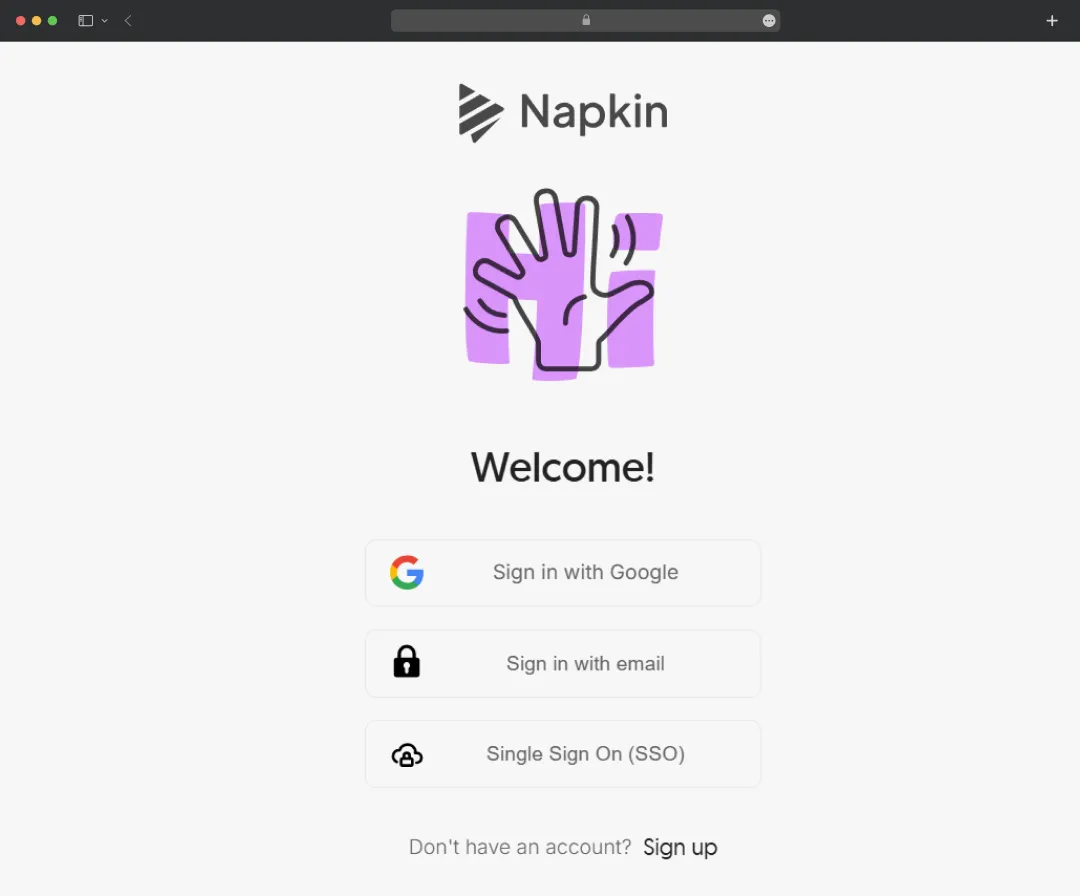
Once logged in, you can follow the onboarding tutorial to learn how to generate visuals with Napkin AI. Don't skip this—it takes about 2 minutes and shows you the basics.
After creating your account, you'll be presented with two options: "Paste My Text" or "Generate Text Using AI". Here's when to use each:
Option A: Text Paste
Option B: Generate Text Using AI

Now the real thing happens. Hover over the block of pasted/generated text, and click the blue Generate Visual button that appears on the left side.
Tip: You can also generate a visual from a specific section of your document by selecting the text and clicking the blue Generate Visual button.
What Happens Next: After a few seconds, a list of visuals generated from your text will appear on the screen. Scroll through the options to pick your favorite, then choose a style for your selected visual.
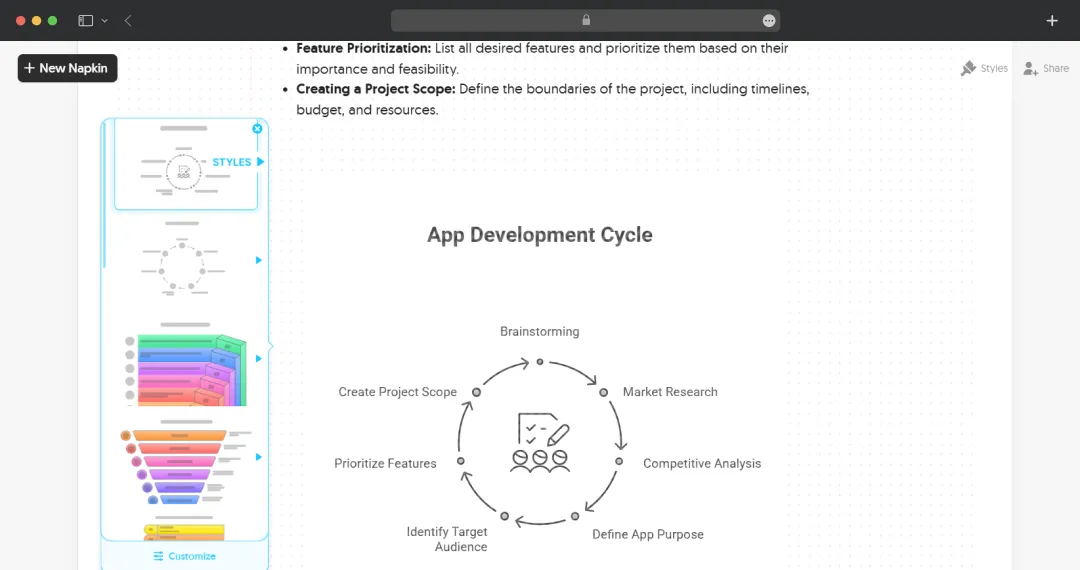
You'll typically see multiple options:
Browse through the AI-generated visuals and pick the one that best fits your content and style. Once you've found your favorite:

Here's what you can customize:
Once you're satisfied with your visual, it's time to get it out of Napkin AI and into your presentation, document, or social media post. You can export it in PNG, SVG, PPT, or PDF format if needed.
How to Export: Right-click on the visual to see the download options, or use the export function, which opens a preview modal where you can choose to export the visual as a PNG, SVG, PPT, or PDF. You'll also have a few additional options, such as color settings.
Export Format Guide:
Once you're pleased, save your visuals in formats such as .png, .pdf, or .svg.
After thoroughly testing Napkin AI and putting it through real-world scenarios, our team at MobileAppDaily has some strong opinions about where this tool truly shines. Right off the bat, its USP becomes evident. Napkin AI is one of the only AI-powered visual tools that treats text as the starting point, design as the output, and editing as a natural continuation—not a compromise.
Moreover, Napkin’s learning Curve is Practically Non-Existent. In our testing across team members with varying design experience, everyone was creating professional-looking visuals within 5 minutes. There's no tutorial rabbit hole, no overwhelming toolbar, and no "where do I even start?" paralysis.
Unlike AI image generators that give you a final image you can't modify, Napkin's approach allows users to easily edit unique elements of illustrations, like individual slices of a pie chart. During our tests, this made all the difference.
Yes, Napkin AI offers a free plan that gives you access to core features with limits on AI credits used for visual generation and some customization options. AI credits measure app usage, with approximately 1 credit charged per word selected for generation. The free plan provides 500 credits per week, which should be sufficient for moderate use. For heavier usage and advanced customization features, paid plan tiers are available with higher credit allocations.
Absolutely! The visuals created with Napkin AI are not subject to copyright, which means you have the freedom to use them on your website, social media, presentations, books, or any other platform you choose (without any restrictions). Whether you're creating marketing campaigns, blog posts, or educational materials, the visuals are yours to use commercially. However, Napkin does not guarantee that Generated Output will be unique to you, as similar inputs may produce similar outputs for different users.
You can view your existing Napkins on mobile, but creating and editing Napkins is only available on desktop. The best Napkin generation and editing experience is on desktop for now, though they may add generation and editing support on mobile in the future. The platform is optimized for desktop browsers, where you can access the full feature set, including the blank canvas workspace and all editing capabilities.
Currently, Napkin AI doesn't offer the option to manually select a specific visual type, but the AI is designed to understand context and produce visuals that align with your content's intent Medium. To help Napkin AI generate a visual closer to your preference, try adding a descriptive hint at the start of your text—for example, if you want a chart, begin with "Chart:" or "Graph showing..." Medium. This small cue guides the AI toward the style you're aiming for without requiring complex prompts.
Latest Products
Delve into our comprehensive yet easy-to-consume guides, which provide insights that help scale business faster and prevent unseen pitfalls.
Related Products
Cut through the clutter and explore related digital products that deliver on performance.