Share It On:
 Wondering how to take control of your browsing habits by restricting unwanted apps? Here’s a step-by-step guide to understanding how to block a website on Chrome!
With over 3.4 billion users worldwide, it’s no surprise that Google Chrome stands as one of the top web browsers. My team and I tested its methods and found that Chrome’s easy-to-use interface, smooth integration with various Google apps, and strong features truly make it a favorite.
But even with all its popularity, we realized that there are times when we need more control over our browsing experience. Whether it's avoiding distracting websites, safeguarding devices from potential malware, or maintaining security, blocking certain websites can make a big difference. So, what’s the best way to do this?
We found that blocking websites is the key. Chrome provides different methods for this, depending on your needs. I along with my team have tested these methods across multiple devices, including desktops, laptops, and smartphones. Here's a simple guide on how to block a website on Google Chrome—whether you're on Windows, macOS, or Android, we’ve got you covered with easy steps for each!
How to Block Websites on Chrome Without Extension?
Blocking websites on Chrome without adding an extension means using features of the browser itself or settings in the operating system. These methods are strong and lasting, and do not need other software. This is how you can stop sites in Chrome:
Using Hosts File On Windows
To block websites on Chrome without an extension on Windows, you can edit the hosts file. This method redirects the URLs of the sites you want to block to a local IP address (127.0.0.1), effectively preventing access to these sites.
- Step 1: On your administrator account, search for Notepad in the Start menu. Right click on Notepad and select "Run as administrator."
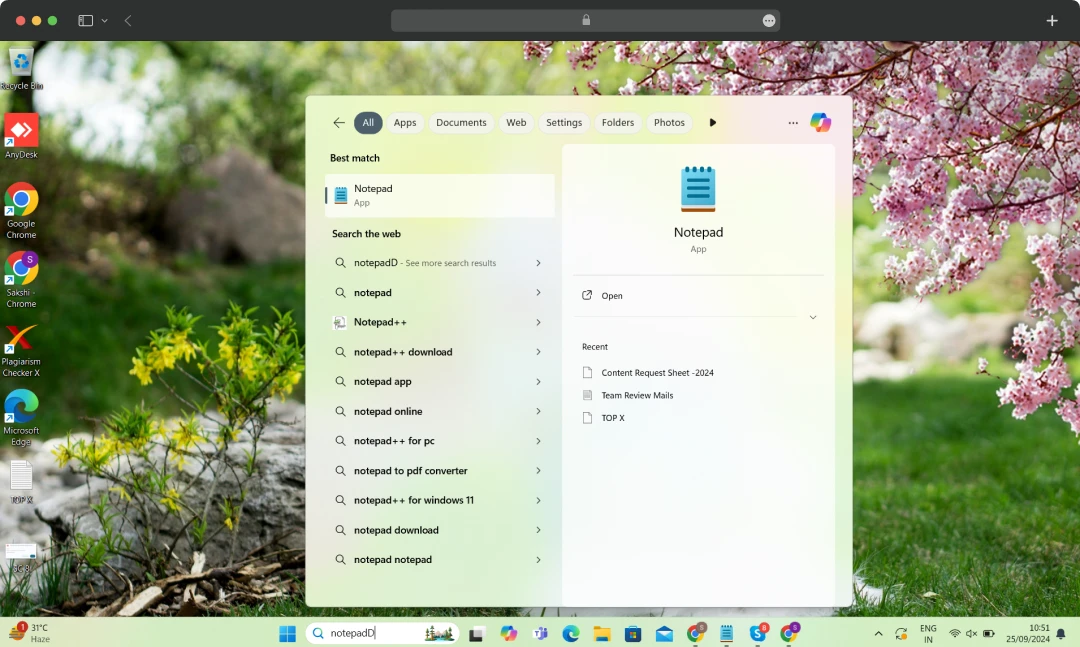
- Step 2: In Notepad, go to File > Open. Navigate to C:\Windows\System32\drivers\etc. Select the "hosts" file. Ensure "All Files" is selected in the file type dropdown.
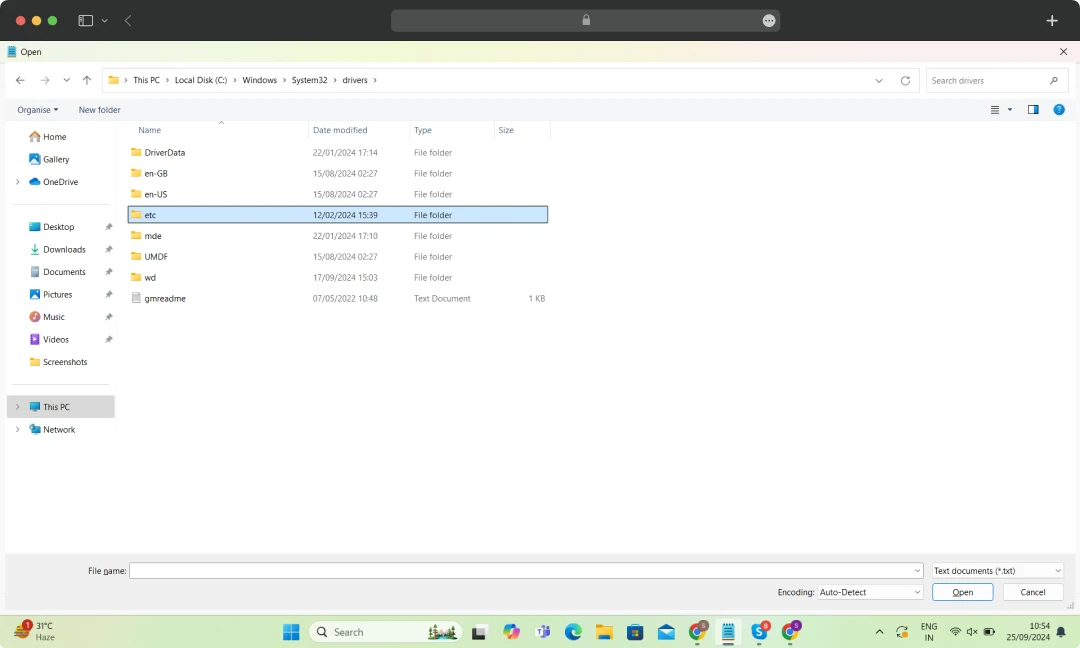
- Step 3: Now, you will have to edit the Hosts File. To do so, scroll to the bottom of the file. Add the websites you wish to block using the format 127.0.0.1 www.blockedwebsite.com.
For example:
127.0.0.1 www.example.com
127.0.0.1 example.com
- Step 4: Save the file and close Notepad. Restart your browser for the changes to take effect.
By editing the host file, you can block sites on Chrome permanently without using any extensions. This method is particularly useful for users who want to block certain websites across all browsers and applications on their system.
Using Screen Time On Mac
Mac users can use the Screen Time feature to restrict websites on Chrome without extensions. Screen Time allows you to limit access to adult websites and add specific URLs to a block list.
- Step 1: Open Apple Menu and locate System Settings. Further, select Screen Time followed by Content & Privacy.
- Step 2: Turn on the Content Privacy toggle and choose App Restrictions.
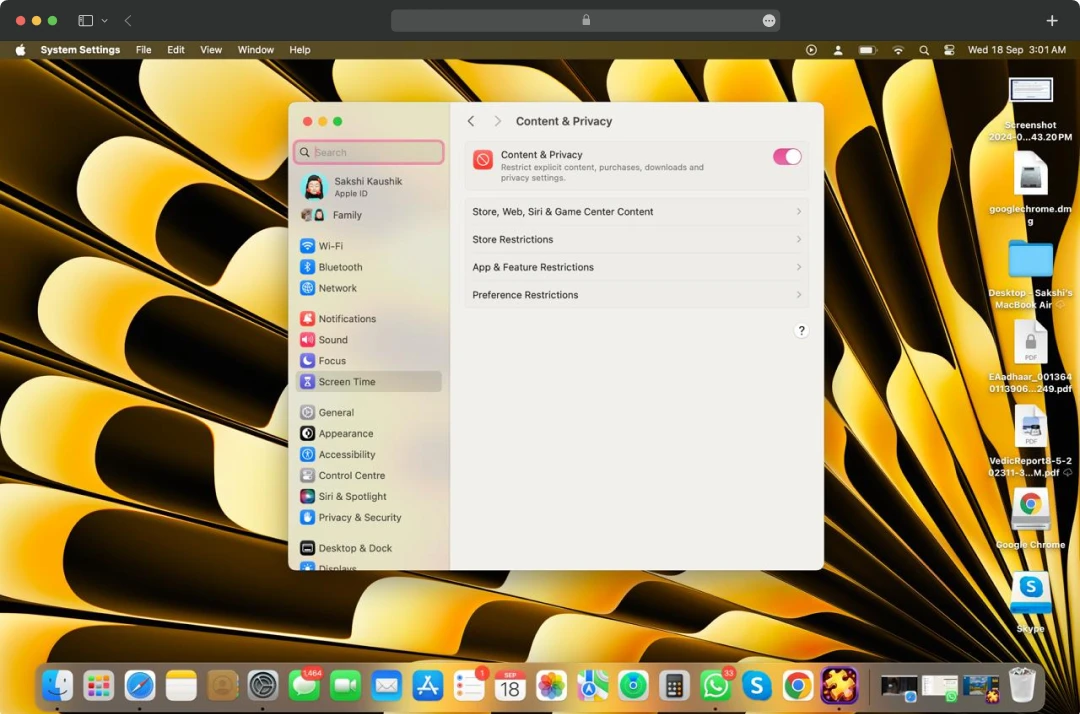
- Step 3: From the drop-down menu, select Limited Adult Website and click on Customise. This option will let you add specific websites that you wish to block.
- Step 4: Enter the URLs of specific websites that you wish to block and click Done.
By using Screen Time, you can block websites on Chrome on a Mac, ensuring that the restrictions are enforced system-wide, not just within the browser.
How to Block Websites on Chrome Using Third-party Extensions?
The easiest way to block websites on Chrome is by using Google or third-party extensions. Here’s an easy guide to help you block websites on Chrom with extensions. Whether you’re using Mac or Windows, extensions work equally well.
- Step 1: Open Chrome Web Store and select Extensions.
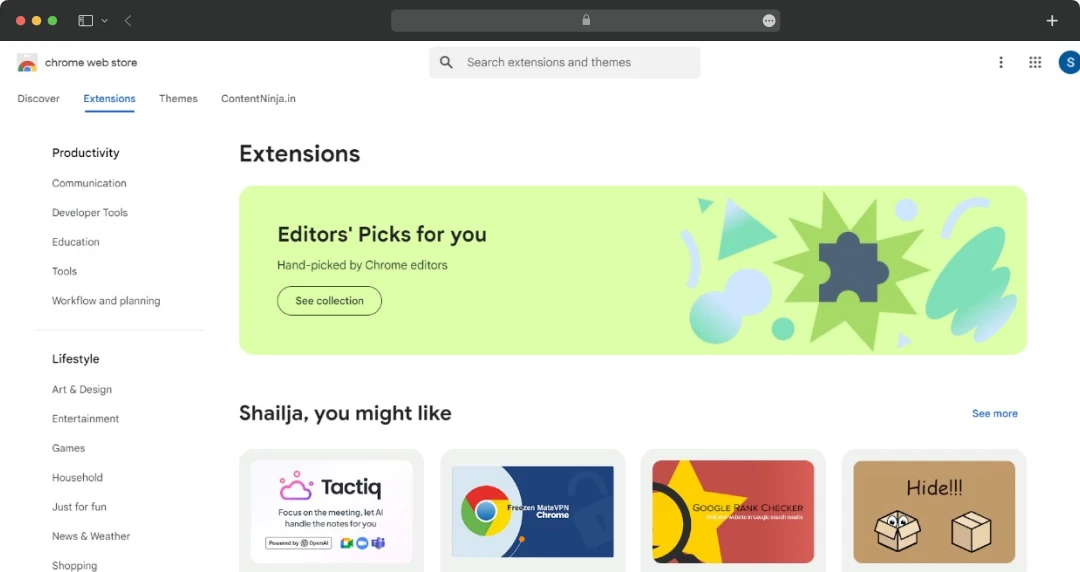
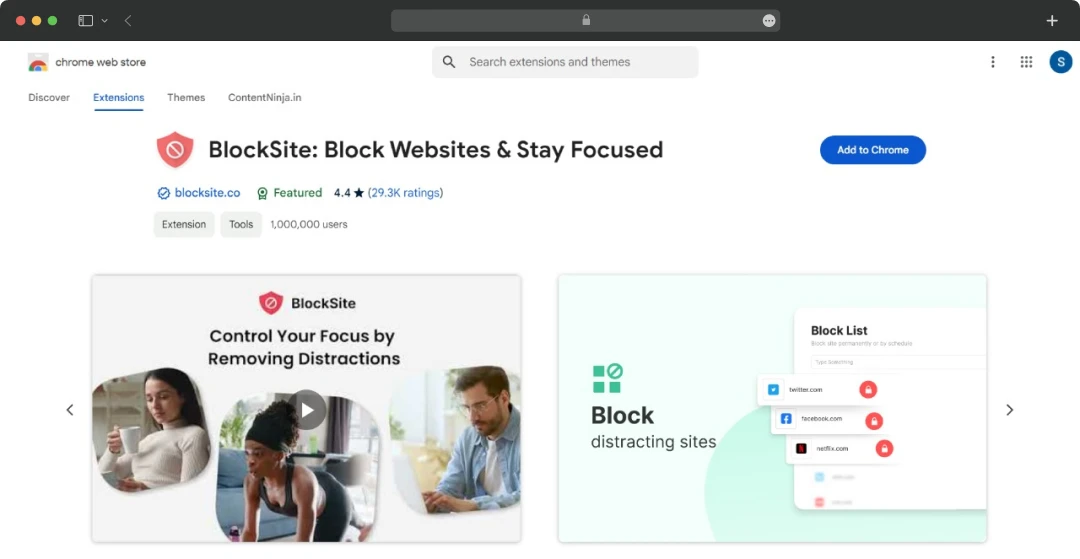
- Step 2: Search for third-party extensions, such as BlockSite. Open it and add it to Chrome.
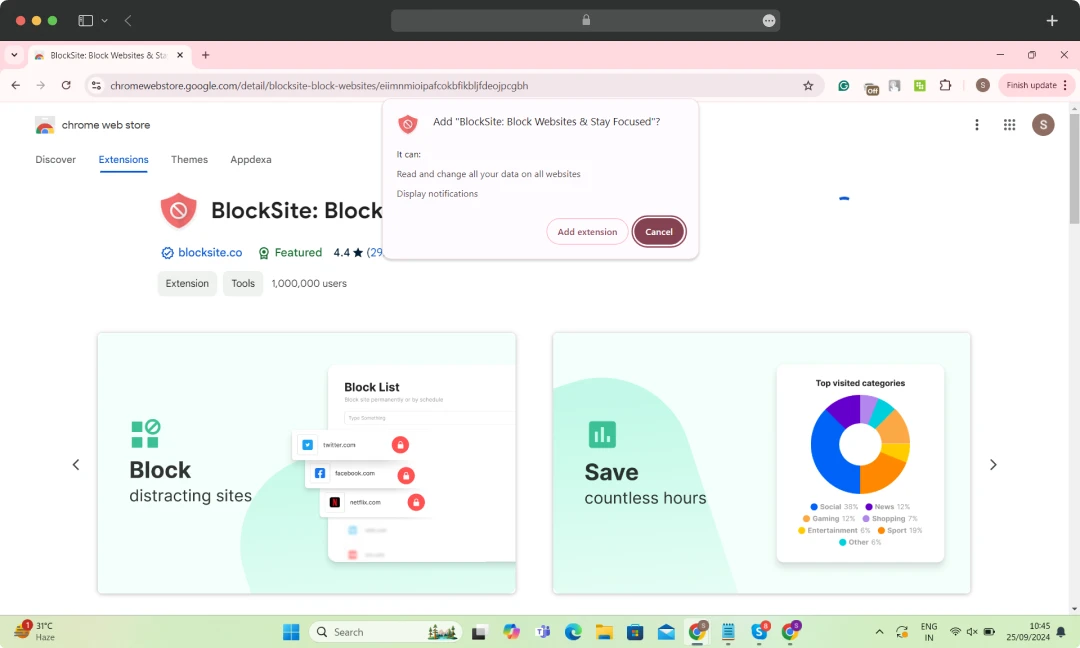
- Step 3: Click on the Add Extensions button that will appear as a popup.
- Step 4: In a new window, you’ll find the BlockSite page open. Paste your choice of websites in the active search panel and press on the “+ Add to Block List”. This will save your changes and implement them on your browser.
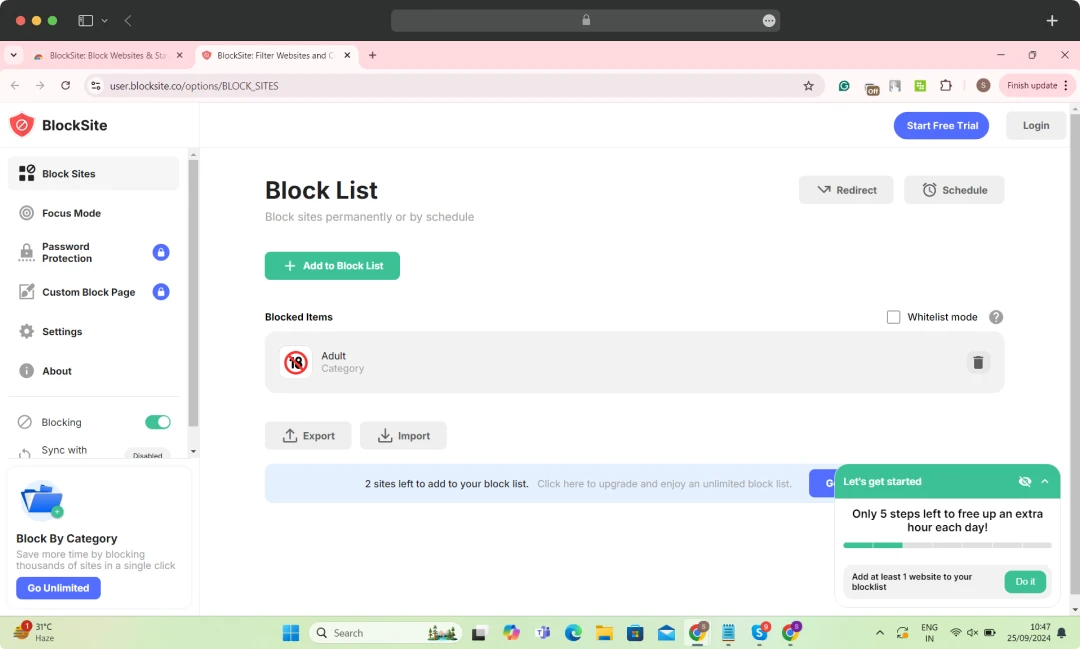
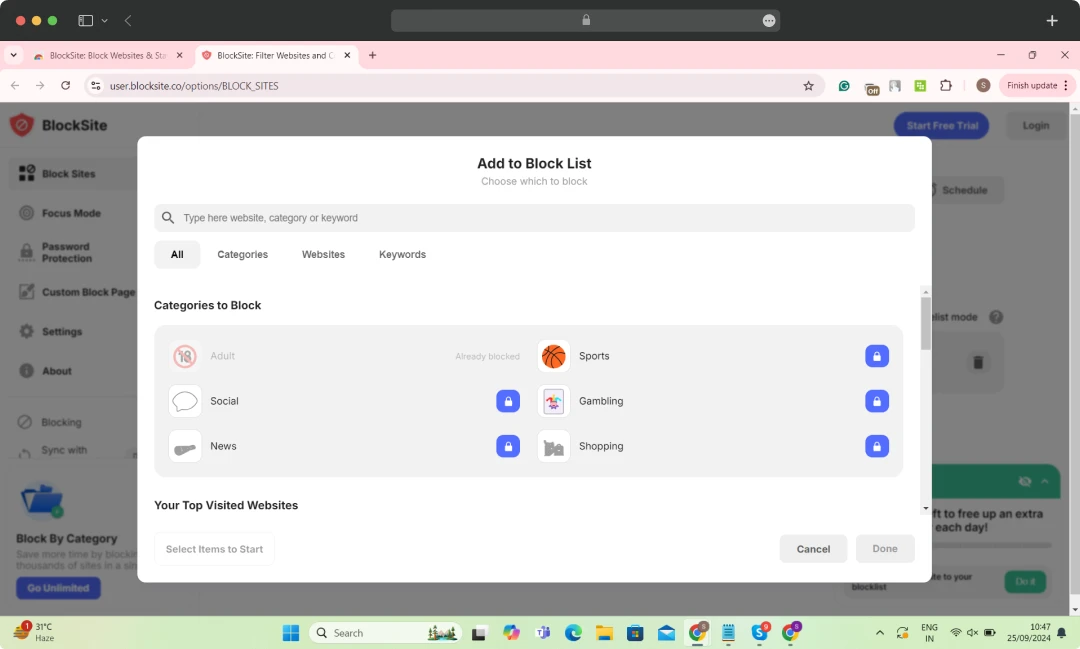
You are now ready to protect your web browser from accessing any unwanted websites.
Blocking Websites on Mobile Devices
Blocking websites on mobile devices requires specific steps for Android and iOS:
How to Block a Website on Android Chrome?
Using Google Family Link On Android
Wondering how to block websites on Android Chrome?
To block sites on Chrome on Android devices, you can use Google Family Link, a parental control app that helps manage the browsing experience for children.
- Step 1: Download and install Google Family Link from Google Play Store.
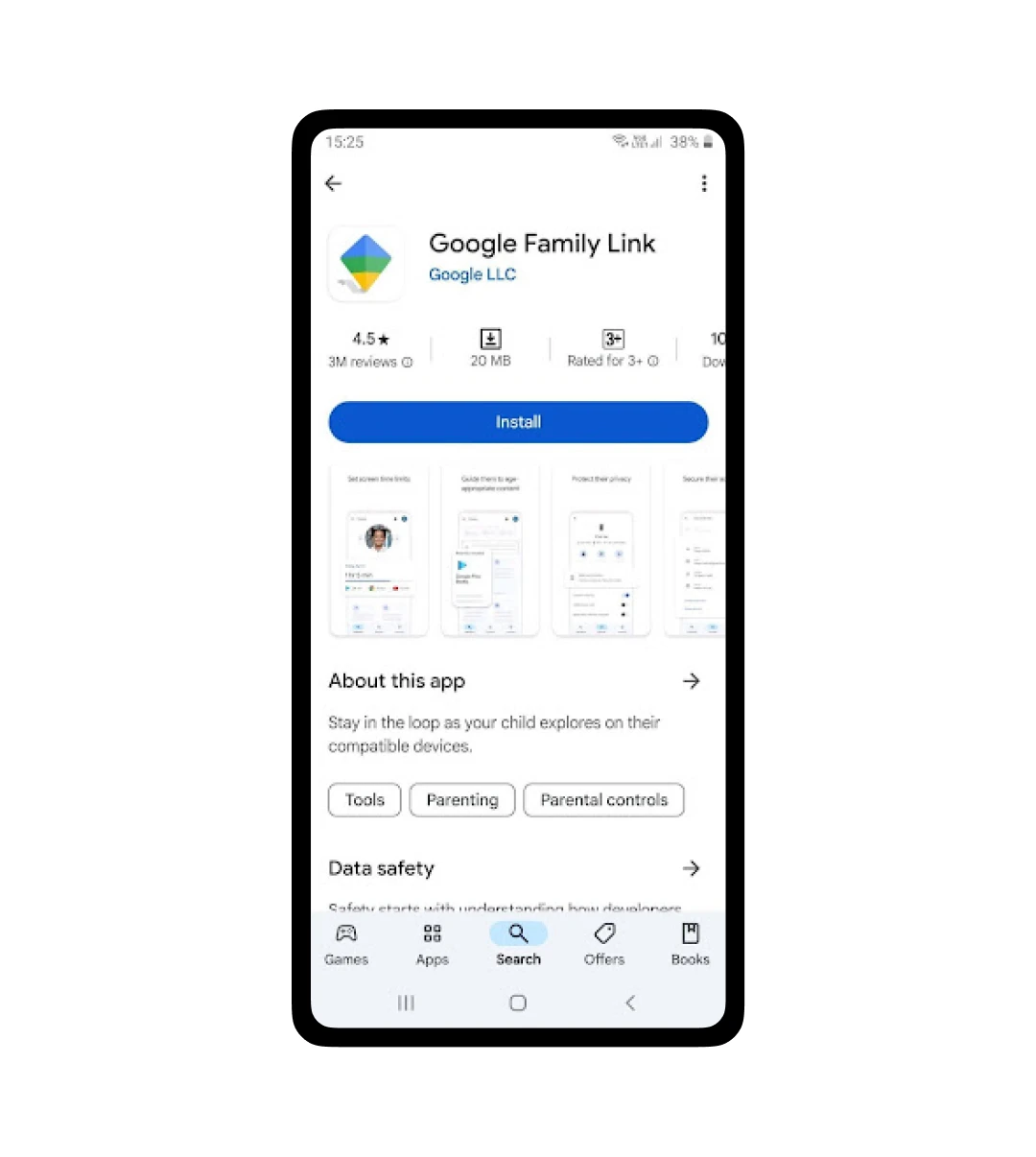
- Step 2: Set up Family Link on both parent and child devices.
- Step 3: Open the Family Link app on the parent device and select the child's account.
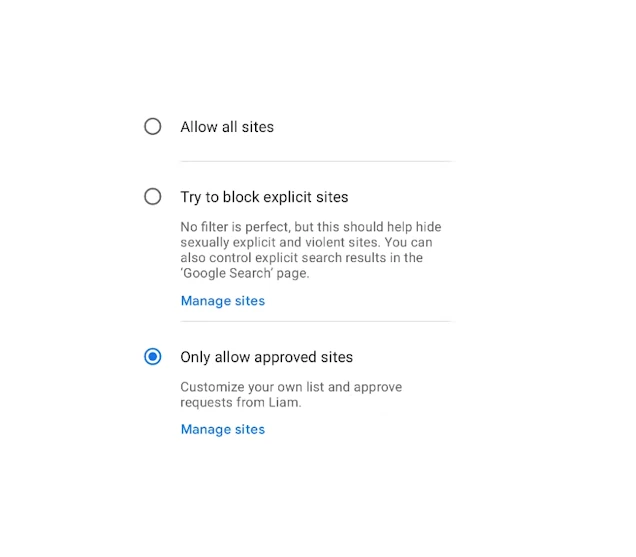
- Step 4: Go to Manage Settings and then Google Chrome. Enable Try to block explicit sites and add specific URLs to block.
How to Block a Website on Chrome iPhone?
iPhone users can also use the Screen Time feature to block sites on Chrome. I tested the same on my iPhone, and here’s an analysis for you:
Using Screen Time on iOS
- Step 1: Go to Settings > Screen Time and enable it.
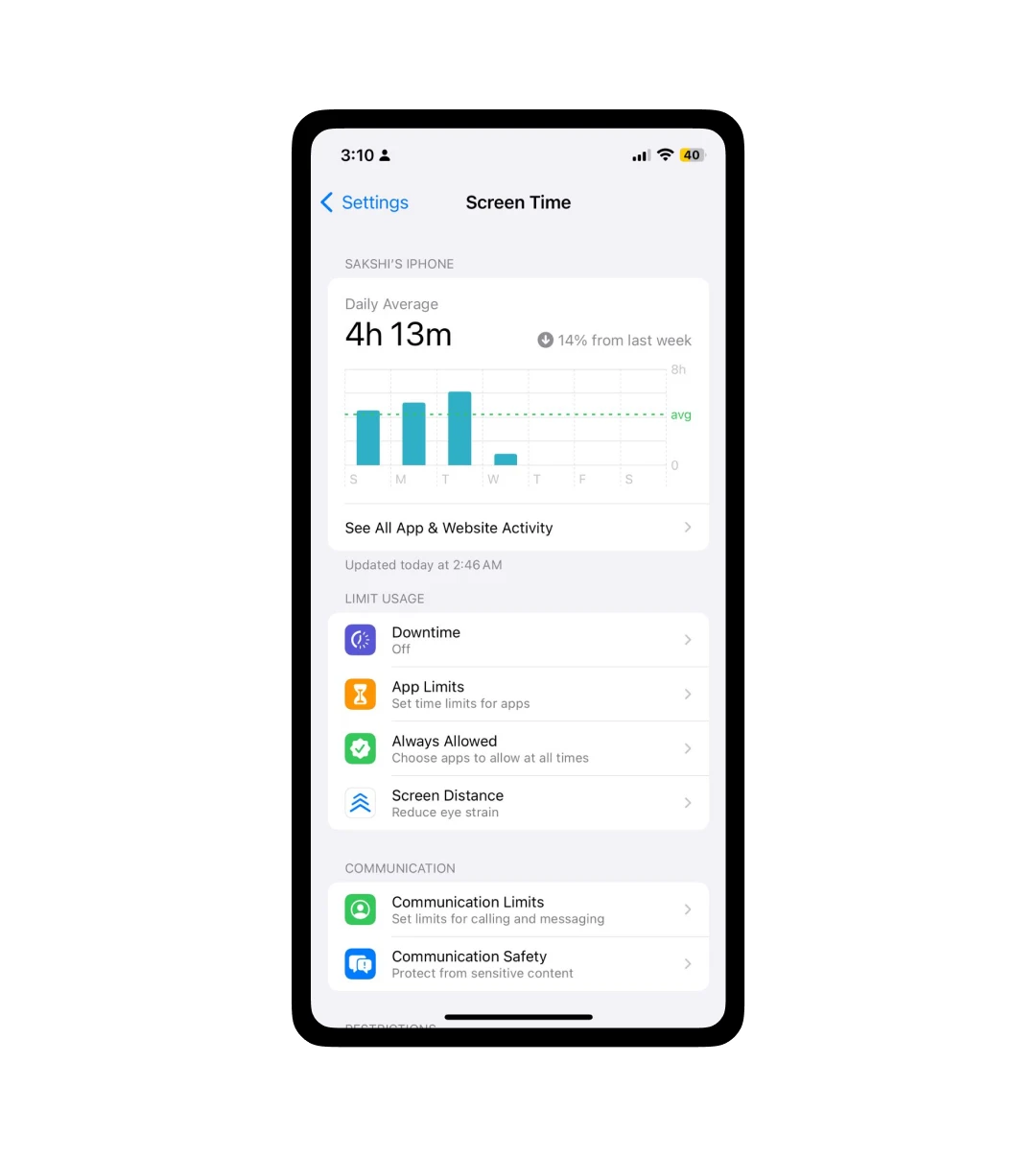
- Step 2: Select Content & Privacy Restrictions and enable restrictions.
- Step 3: Under Web Content, click on the Limited Adult Websites option. A Never Allow list will be opened where you can add your choice of websites that you wish to block.
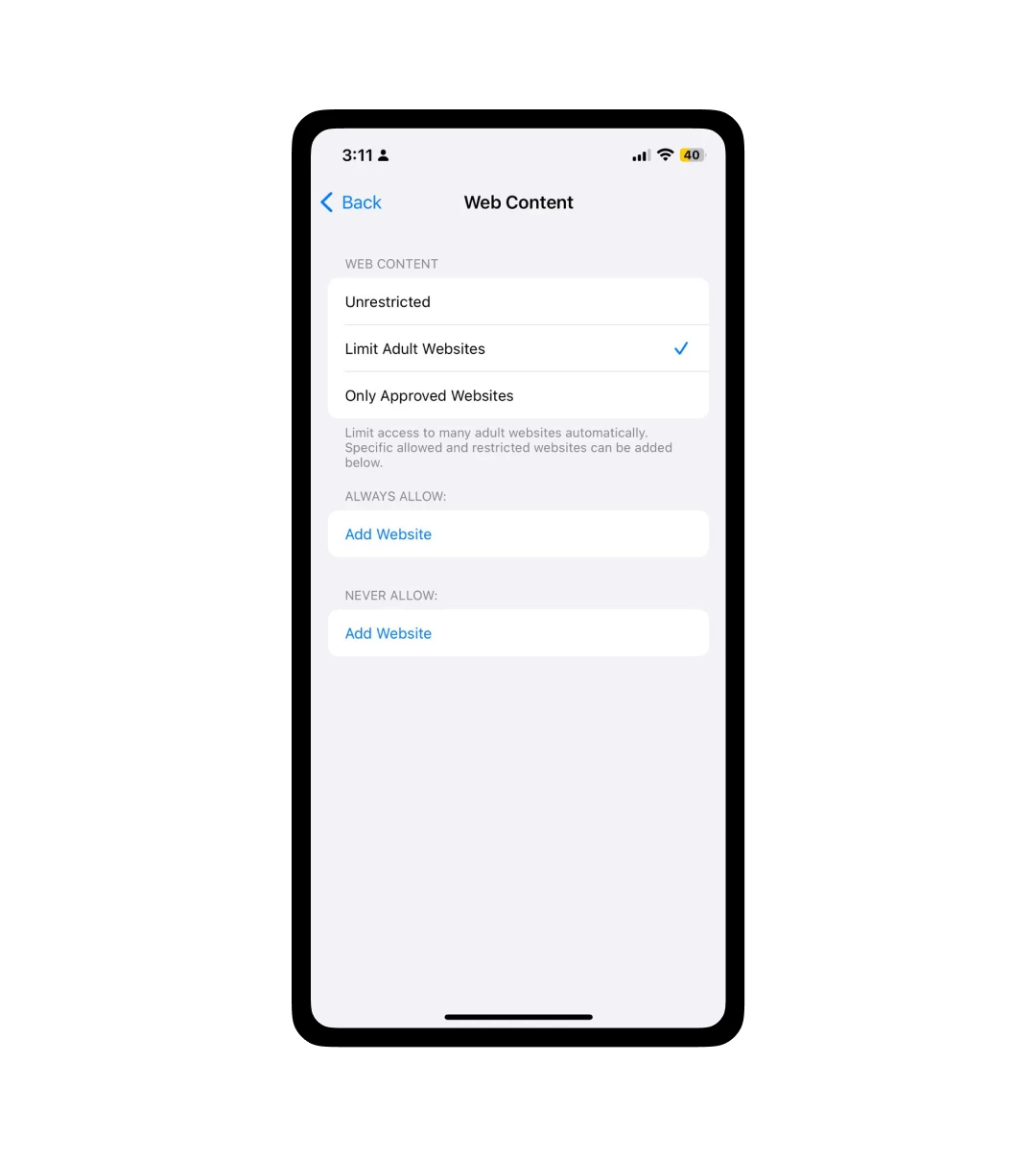
Mobile device blocking ensures safe and controlled browsing for users on the go.
How to Block Websites Using Parental Controls?
Parental controls are a great way to block inappropriate websites on Chrome, ensuring a safe browsing environment for children. Here's how to do it as we tested the same:
- Step 1: Access Chrome settings on your browser or go to “https://www.google.com/preferences”
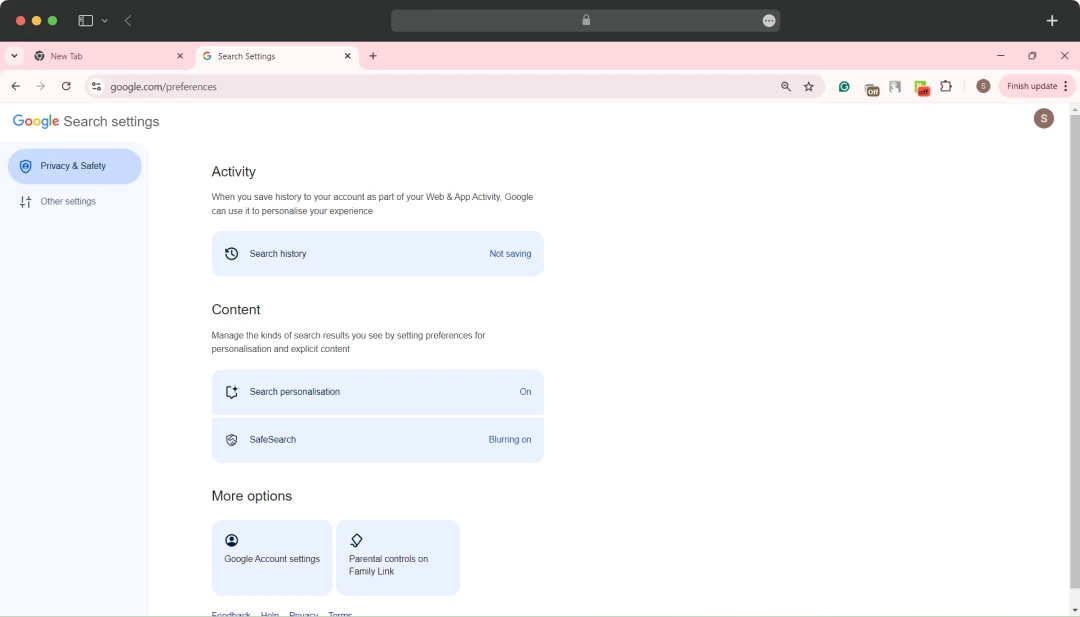
- Step 2: Select "SafeSearch" to enable filtering of explicit content.
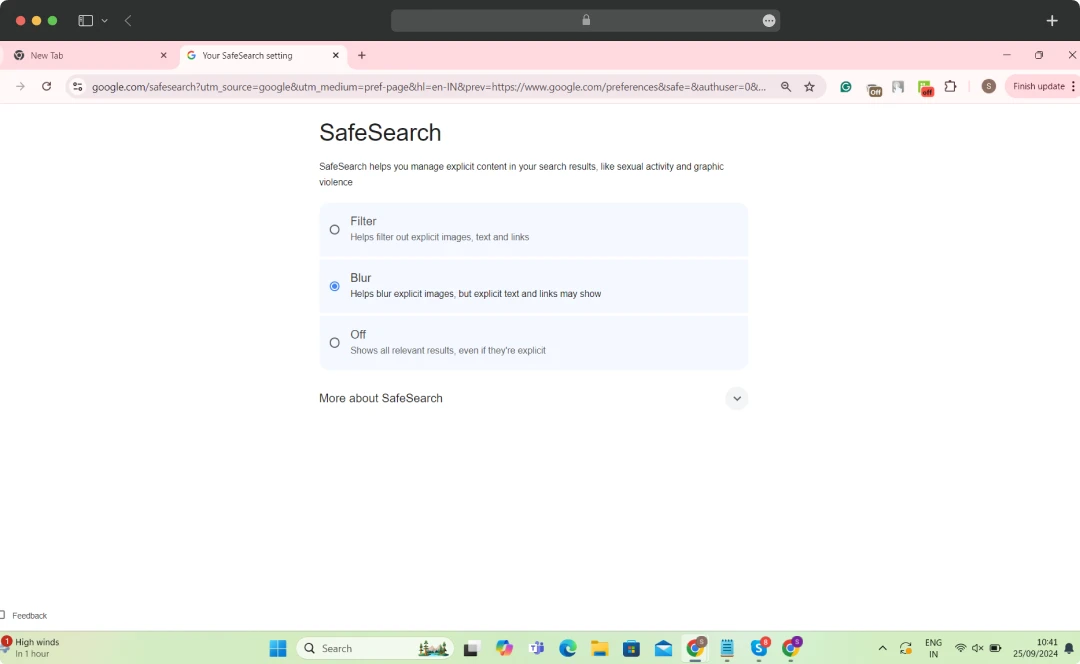
Parental control apps offer a robust solution for restricting access to inappropriate content and blacklist websites, ensuring children have a safe online experience.
Blocking Websites via Router Settings
Blocking websites at the router level is a powerful method to control access across all devices connected to your network. My team and I tested this process to ensure its effectiveness in keeping unwanted websites off our devices. By adjusting settings directly in the router, you can prevent access to specific sites for everyone using your Wi-Fi, making it ideal for maintaining a secure and distraction-free environment.
- Step 1: Access Router Settings by entering your router's IP address into the browser's address bar (commonly 192.168.1.1 or 192.168.0.1).
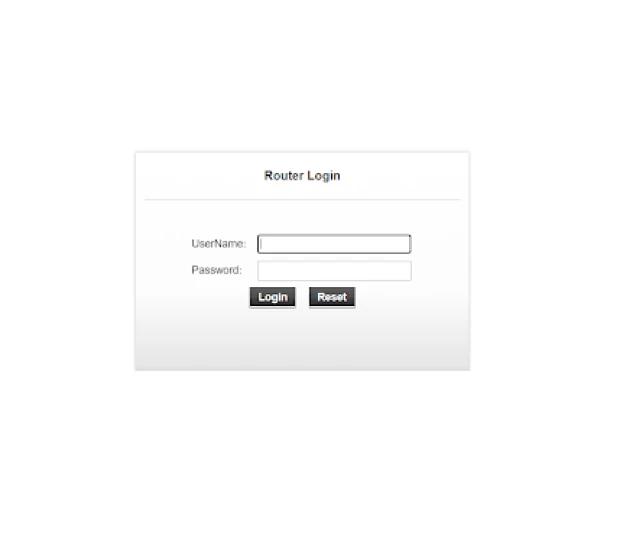
- Step 2: Log in with your router admin credentials, which is often available on your router.
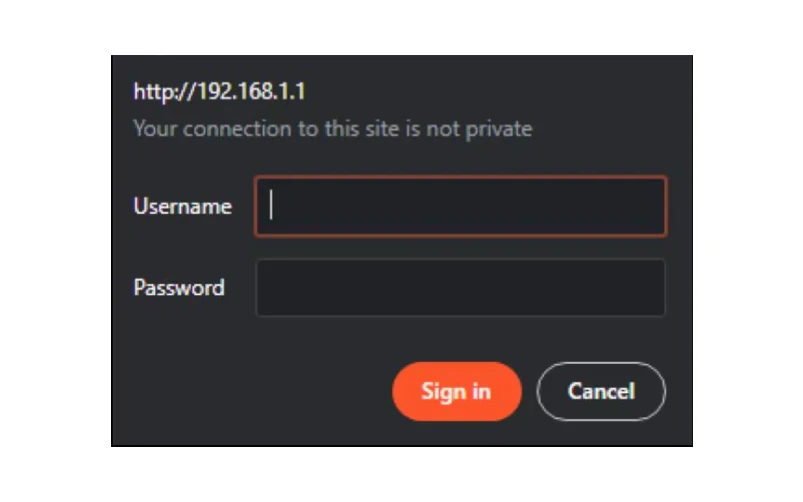
- Step 3: Navigate to the "Parental Controls" or "Access Restrictions" section.
- Step 4: Add the URLs of the websites you want to block.
- Step 5: Save the settings and restart the router.
Blocking websites via router settings ensures comprehensive control, affecting all devices on the network without additional configuration.
Block Websites Using Chrome Incognito Mode
Even though Chrome’s incognito mode is designed for private browsing, my team and I tested ways to block websites even in this mode, and it’s totally doable. If you already have an extension active for blocking websites, this becomes much easier. Extensions like BlockSite or StayFocusd can be configured to work in incognito mode with just a few tweaks in the settings.
- Step 1: Click on the Manage Extensions button
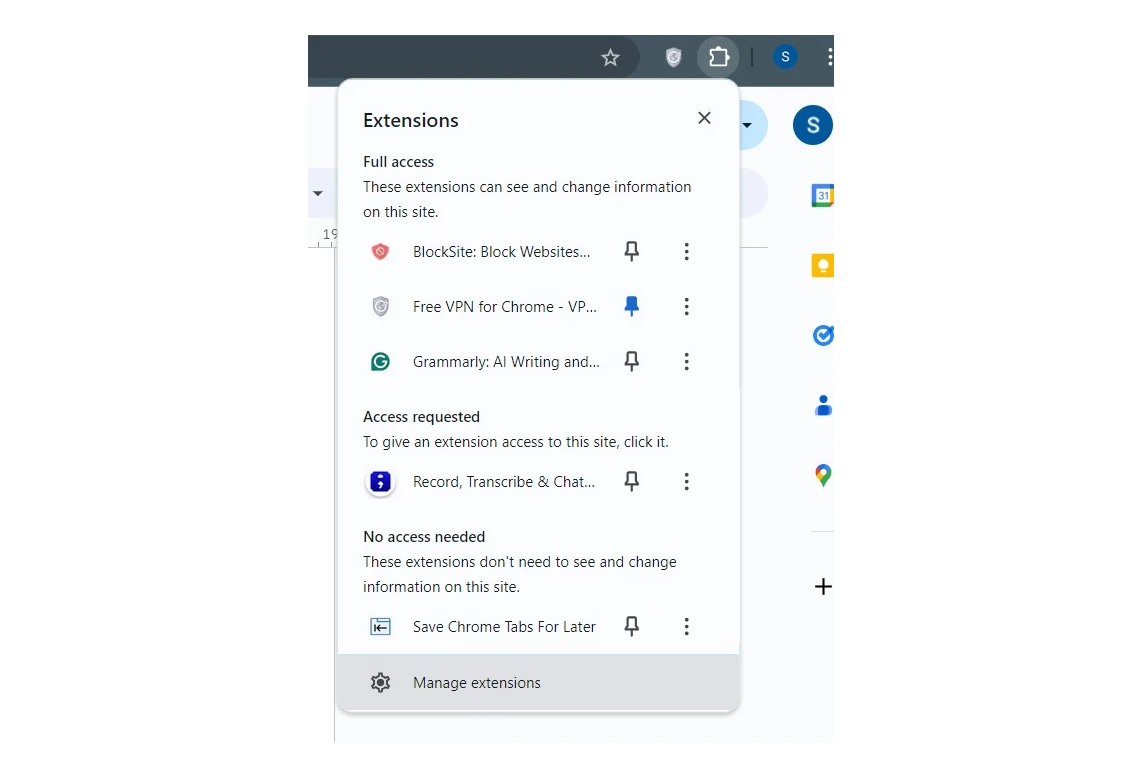
- Step 2: Locate the third-party website-blocking app on your extensions. In our case, locate the BlockSite extension.
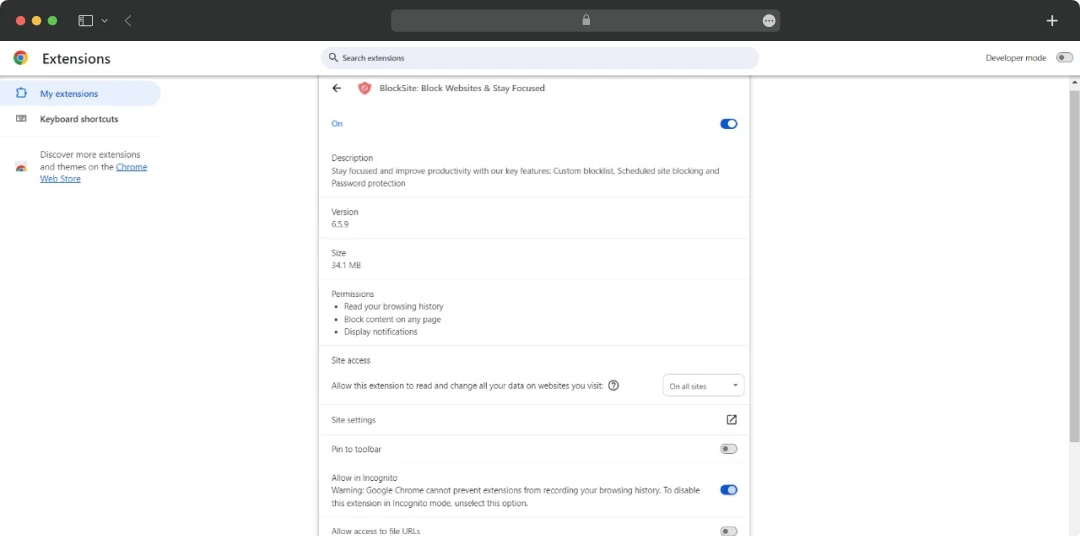
- Step 3: Enable the Allow in Incognito button
The extension will now also work in incognito mode when thinking about how to block certain websites.
Conclusion
Blocking websites on Chrome is a great way to ensure a safer and more productive browsing experience. My team and I tested different methods to see which ones work best for avoiding spammy sites and distractions. With how to block a website on Google Chrome, you can easily use built-in features like Safe Search and parental controls or install third-party extensions like BlockSite. These solutions help block unwanted websites that disrupt your browsing or pose security risks.
In our tests at MobileAppDaily, we found that Chrome’s built-in settings work well for basic filtering, while extensions provide more advanced options for managing restricted websites. By following the steps we outlined, you can customize your Chrome experience, keeping unwanted sites at bay and protecting yourself or your family from potential online threats. It’s a straightforward solution that enhances both security and productivity.
Frequently Asked Questions
Can I block websites on Chrome without using extensions?
Yes, you can block websites on Chrome without using extensions. This is possible by using the built-in features of Chrome and settings in the operating system. For instance, if you have a Windows system, it allows editing the hosts file so that you can redirect unwanted URL addresses to a different location or restrict them entirely. On a Mac computer, the Screen Time feature lets one limit entry for certain URLs as well. Both the methods are effective and do not require any additional software.
How do I unblock a website that I've accidentally blocked?
To unblock a website that you've mistakenly blocked, you must undo the action that was used for blocking. For instance, if you modified the hosts file on Windows, access the hosts file in Notepad as an administrator and eliminate lines aligned with that particular blocked website. In case the Screen Time feature was utilized on a Mac machine, then follow this path: System Preferences > Screen Time > Content & Privacy > Web Content to delete the site from your block list. After making these changes, save the file or settings and restart your browser.
How to block a URL in Chrome?
To block a specific URL or site on Chrome, there are various methods you can use according to your device and choices:
- Windows: Modify the hosts file and include the website's URL with 127.0.0.1 for redirection.
- Mac: Use Screen Time to add the website to the restricted list.
- Android: Use Google Family Link to manage and block websites on Chrome.
- iPhone: Utilize Screen Time to limit access to specific websites.
These methods provide a straightforward way to block unwanted websites on your devices.
Can I block websites on Chrome across multiple devices?
Yes, you can block websites on Chrome across various devices by adjusting settings on each device separately or using solutions at the network level. For blocking at network-wide scope, you can set your router to limit entry to selected websites for all devices that are connected to the network. Other options include using tools such as Google Family Link for managing and stopping access to websites on numerous Android gadgets.
Is there a way to schedule website blocking on Chrome?
To schedule website blocking on Chrome, you can use third-party software and parental control apps. Some applications such as BlockSite provide the option to set certain times when particular websites are allowed or blocked from being accessed. This feature is useful for controlling productivity by restricting entry to distracting sites during work or study periods. Regrettably, Chrome browser does not have a built-in feature to schedule website blocking. You will need to use an external tool for this purpose.
Why Would You Need to Block a Website Permanently?
There are many personal and professional reasons behind blocking websites permanently on Chrome. For instance, parents would want to block unwanted, unsafe websites from their systems to avoid their children from getting access to it. On the other hand, an organization can also use this feature to increase work efficiency for employees, along with the need to protect the network from possible risks.
How to restrict a website on Chrome?
To restrict a website on Chrome, you can use the built-in settings or a third-party extension. For a simple method on how to block a website, go to Chrome's settings, enable "SafeSearch," or install a site-blocking extension like "BlockSite" to manage restricted websites easily.

Uncover executable insights, extensive research, and expert opinions in one place.
Related Content