Share It On:
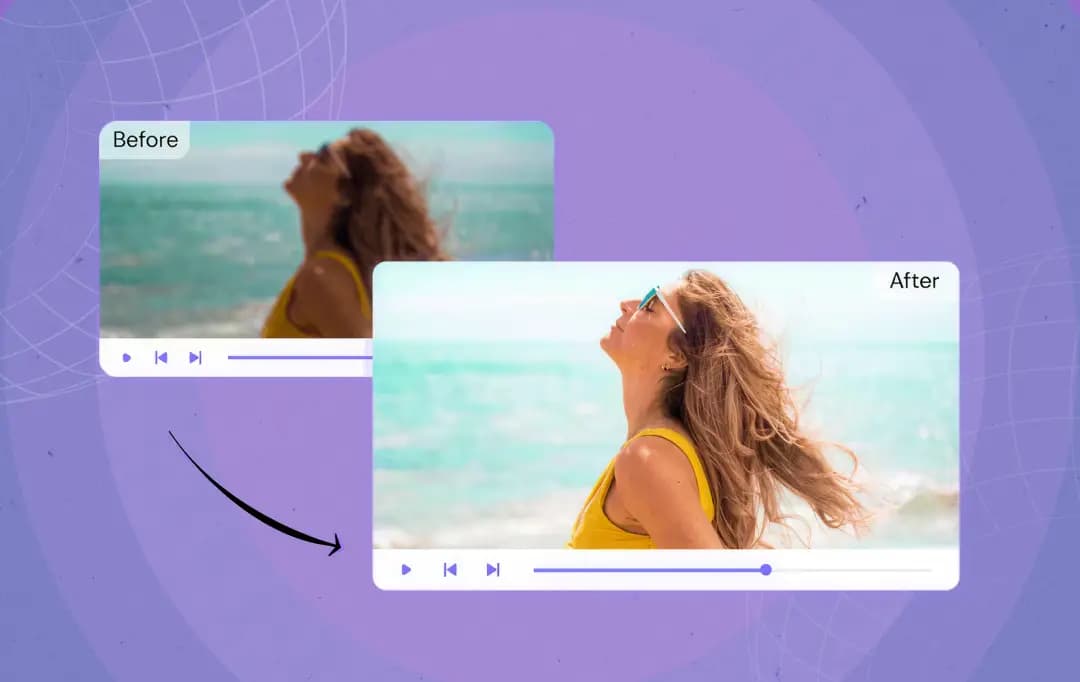 Pushing pixelated video is a technical liability that kills a brand’s credibility. In an era where "substance over spectacle" defines the winners, failing to automate the video quality is a direct burden on your brand’s authority & user experience.
Back in the early 2000s, enhancing a video usually meant applying a sharpener filter that made everything look bright. The conversation is entirely different nowadays. People often ask, how do AI video enhancement tools work? It is a question that touches how people consume social media in 2026 and beyond. Whether you are a solo creator or a decision-maker, the quality of your visual assets dictates your authority and connection with your audience.
The reality is that enhancing video resolution with AI has moved from science fiction to a standard requirement. When creators talk about AI improving quality, they aren’t just talking about brightness and contrast or about a low-resolution, noisy, or muddy clip. It is not just a filter anymore. It’s a total reimagining of what digital footage can be.
Here’s what I’ve gathered from my research on AI video enhancement tools in the streaming industry about the actual technology behind video enhancement with AI. To give you a more grounded, practical view of how these AI video enhancement tools operate, I’ve used HitPaw VikPea as a primary example along the way. This tool is totally worth a try and actually raises the bar of AI in transforming video enhancement for the streaming industry. Let’s explore how these tools actually turn a grainy, low-bitrate video into something that truly holds up on a high-definition screen.
How AI Actually Improves Your Video Quality
Imagine you have a tiny, blurry photo. Traditional tools just stretch that photo, making the blur even bigger. AI, on the other hand, looks at the blur and says, "I know what a human eye or a blade of grass is supposed to look like," and it draws those details back in using the best AI video generators.
1. Enhancing Video Resolution
This is the part most people care about. Enhancing video resolution with AI (or upscaling) is about more than just making the file bigger. It’s about clarity. The AI analyzes the video frame-by-frame, cleaning up the edges and making sure textures like skin or fabric look real, not plastic. Because it looks at the frames before and after, it keeps everything steady, so you don't get that annoying "flicker" that often ruins AI-generated videos.
2. AI for Video Color Correction
Have you ever noticed how AI videos sometimes look a bit washed out or off? AI for video color correction acts like a professional editor who knows exactly how to balance light and shadow. Instead of just cranking up the brightness, the tool adjusts colors in a controlled way to keep skin tones looking natural while making the overall image pop.
The Strategic Advantage of Using AI Video Enhancers for Video Polishing
Out of the dozens of products I’ve tested over the years, I have used HitPaw VikPea and it tackled the messy problems that manual editing or basic filters simply can't touch. I have found that AI-generated videos, low-resolution clips, or old footage might look "okay" at first glance, but once you start looking at them frame by frame, the issues become glaring.
Instead of just putting a generic filter over the whole video, it analyzes the content at the frame level. It looks at every single frame with a focus on edges, textures, and motion consistency. This is a huge deal for anyone using HitPaw VikPea, where videos are built in stages and need that extra polish to look professional. Here’s a breakdown of what this tool actually does and is a practical choice for video enhancement.
1. AI Video Upscaling up to 8K

Video upscaling using AI focuses on rebuilding the details that were lost while keeping the motion clear. When you push a video up to 4K or 8K, the edges stay sharp, and the textures actually look real. This is perfect for enhancing video resolution with AI on those older clips that need to meet modern display standards without looking like they were sharpened artificially.
2. Noise Reduction and Artifact Removal

Noise and compression artifacts often appear in low-light videos or heavily compressed AI outputs. The AI-based video enhancement tool, VikPea, cleans up that grain without flattening the important details and block artifacts caused by compression are minimized. The primary goal is a clean image that still feels natural, and this tool hits that mark every time.
3. Color Correction and AI Color Boost

Color issues are incredibly common in AI-generated content. Instead of just pushing colors aggressively, VikPea uses AI for video color correction to fix contrast, restore accurate tones, and enhance visual depth. I really appreciate how it keeps skin tones and lighting believable rather than making everything look neon and "pushed".
4. Video Repair and Restoration

For those old archival clips or blurry digital files, the restoration models are a lifesaver. VikPea recovers clarity and stability while respecting the original character of the footage. Whether it’s blurring, fading or visual degradation, VikPea helps in recovering the video. This is a practical way to handle video enhancement with AI for older projects that need a refresh.
4-Step Guide for Using HitPaw VikPea
If you are ready to explore how to use this tool, here are just a few steps that will explain exactly how to get the best results quickly. It simplifies the technical breakdown of AI video quality enhancers into a few clicks.
Step 1: Download and Install
Download HitPaw VikPea from the official page and launch the application.
Step 2: Upload Your Footage
Click on the “Video Enhancer” button and upload the video. Use multiple AI models to upscale, reduce noise, restore old videos, and more.

Step 3: Select the AI Model
Choose your preferred AI model, such as the General Restoration Model, the HD Sharpen Model, and more from the list. Click on the ‘Preview’ option in the middle once you have chosen the AI model.

Step 4: Export The Video
The real-time preview allows you to see the video upscaling using AI in action before you commit to the final render. Once satisfied, export it in up to 8K resolution.

Common Use Cases for ComfyUI Users
I have seen countless creators get stuck in the "uncanny valley" of AI video. You spend hours building a complex node setup in ComfyUI, hit render, and the motion is perfect, but the details are a blurry mess. This is exactly where the ComfyUI and HitPaw integration becomes a lifesaver. It bridges the gap between raw AI-generated content and a broadcast-ready asset.
From my experience, if you aren't post-processing your generative frames, you're leaving 50% of the quality on the table. Here are some real-world applications of AI-enhanced videos.
| Use Case | The Common Hurdle | How VikPea Fixes It |
|---|---|---|
| Enhancing AI-Generated Videos | AI-generated videos often suffer from "micro-flicker," unstable textures, and soft edges that look "mushy." | Tools like VikPea act as a temporal stabilizer, smoothing out those artifacts and sharpening the edges so the video looks solid and "real." |
| Improving Low-Resolution Footage | Running high-resolution generations (like 4K) directly in ComfyUI is a massive drain on GPU memory and time. | Most tools generate at 512p or 720p first to save hours. Then, they use video upscaling using AI to bump that footage up to 4K without losing the original motion or style. |
| Preparing Videos for Publishing | Raw outputs often look "flat" or carry digital noise that makes them look amateur on platforms like YouTube or LinkedIn. | The final pass handles AI for video color correction and denoising. It’s the last step to ensure your work meets the high visual standards required for web development for business growth. |
Conclusion
If we take a moment to look at how these AI video enhancement tools actually operate, the biggest thing to understand is the shift away from just "fixing" or sharpening footage. We are now using an engine that truly recognizes what a face, a fabric texture, or a moving landscape is supposed to look like, which allows the tool to intelligently rebuild missing data and textures from the ground up based on millions of learned examples.
The beauty of AI video enhancement tools working today is that they hide all that massive technical complexity behind a single, user-friendly interface. You don't have to spend years mastering the fine details of manual restoration or temporal denoising to get a professional result. They handle the heavy rendering and frame-by-frame analysis in the background, so you can just upload a rough, low-res clip and watch the technology sharpen it into a clear, high-quality asset that holds its own in the streaming industry.
Frequently Asked Questions
When is it better to use a video enhancer instead of manual video editing?
A video enhancer makes more sense when the problem is quality, not creative direction. If a video is blurry, noisy, or low resolution, AI enhancement is faster and more consistent than manual fixes. Manual editing is better suited for cuts, transitions, or stylistic changes.
How do AI video enhancement tools work for low-light footage?
Yes, video upscaling using AI is remarkably effective for low-resolution content. Tools like HitPaw VikPea use "Super Resolution" technology to analyze the low-res input and generate missing pixels. It makes it look remarkably sharp at 1080p or even 4K or 8K.
Is an AI video enhancer effective for AI-generated or animated videos?
Yes. AI-generated and animated videos often suffer from frame inconsistency and texture issues. An AI video enhancer works at the frame level, helping stabilize details and improve clarity without changing the animation style or motion flow.
What is the best AI video enhancer tool?
HitPaw VikPea stands out for its user-friendly interface and powerful AI models. It provides professional-grade results without needing an expensive post-production team, making it a cost-effective choice.
What are the main benefits of using an AI video enhancer?
The biggest benefits are speed, consistency, and scalability. AI enhancement reduces the need for manual adjustments, produces stable results across frames, and fits well into automated workflows. Tools like HitPaw VikPea are especially useful when quality needs to improve without slowing down production.

Uncover executable insights, extensive research, and expert opinions in one place.
Related Content